
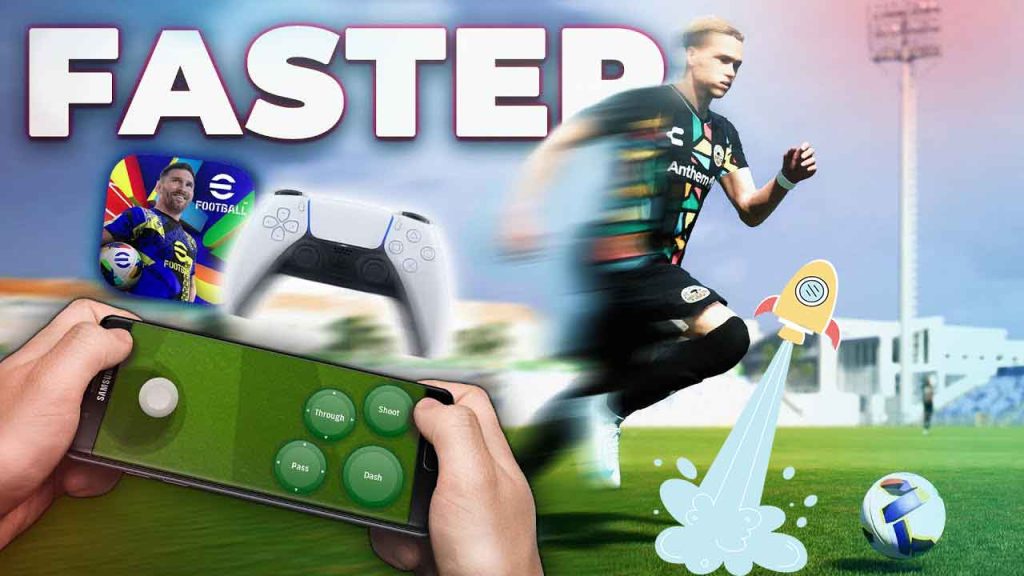

Your player passes a second after you tap. The ball teleports. The screen stutters right when you break through on goal. If that sounds familiar, you’ve probably searched for a game booster for eFootball. The good news: you don’t need to pay for one. The best fixes are free, and most of them are already on your phone.
The catch is that “lag” in eFootball can mean two different problems, and each one needs a different fix. This guide shows you which kind you have, the free boosters that actually help with it, and the in-game settings that make the biggest difference.
- Best free game booster for eFootball: the game mode built into your phone (Game Booster, Game Turbo, Game Space, Game Dashboard). It’s free and can change performance settings that Play Store apps can’t.
- Best for online lag and ping spikes: GearUP. It supports eFootball and has a free trial, so you can test it in your own matches before paying.
- Best free tool to check your FPS: Real-time FPS Monitor.
- Biggest free fix of all: the right eFootball graphics and frame-rate settings for your phone.
First: is it FPS lag or network lag?
A booster can only help if it fixes the right problem. Play one offline match (against the AI) and one online match, then compare:
| What you see | Likely cause | What fixes it |
|---|---|---|
| Choppy, stuttering picture, even in offline matches | Low FPS (your phone) | Built-in game mode and lower graphics |
| Smooth picture, but your taps and passes happen late | Network lag (high ping) | Better Wi-Fi or a network booster like GearUP |
| Players jump around, the ball teleports, “connection unstable” messages | Packet loss (unstable connection) | Network fixes, then GearUP |
| Fine at first, laggy after 10–20 minutes | Overheating | Keep the phone cool |
If the game is choppy offline too, a ping booster won’t help at all. If it’s only bad online, no amount of graphics tweaking will fix it.
Best free game boosters for eFootball compared
| Tool | Fixes | Price | Phones |
|---|---|---|---|
| Built-in game mode | Low FPS, distractions | Free | Most Android phones, iPhone |
| Samsung Game Booster+ | FPS, controller mapping | Free | Samsung Galaxy |
| GearUP | High ping, packet loss | Free trial, then subscription | Android, iPhone |
| Real-time FPS Monitor | Shows your real FPS | Free, optional Premium | Android |
| 1.1.1.1 (Cloudflare) | Slow logins and matchmaking | Free | Android, iPhone |
All of these are covered in more detail in our full list of the 10 best game booster apps for Android and iPhone.
1. Your phone’s built-in game mode (best free booster)
Before you download anything, use what your phone already has. Built-in game modes come from the phone maker, so they can switch the processor and screen into a performance mode. Third-party “booster” apps from the Play Store aren’t allowed to do that. Add eFootball to your game mode and turn on its performance profile:
| Phone | Where to find it | What to turn on |
|---|---|---|
| Samsung Galaxy | Game Booster (swipe up from the navigation bar during a match) | Performance profile, block notifications, lock touch on the navigation keys |
| Xiaomi, Redmi, POCO | Security app → Game Turbo | Performance mode, in-game FPS counter |
| OnePlus, OPPO, realme | Games app / Game Space | Pro gamer or High performance mode |
| Google Pixel | Game Dashboard (pops up when the game opens) | Do Not Disturb, FPS counter, Performance mode if offered |
| iPhone | Game Mode turns on by itself in full-screen games (iOS 18+) | Nothing to set. It lowers background activity automatically |
Samsung owners: install Game Booster+ from the Good Lock app for extra controls like frame-rate and GPU options per game. See how in our Game Booster+ section.
Menu names change between phone models and software versions. If you can’t find it, search “game” in your phone’s Settings.
2. GearUP (best for online lag)
If eFootball runs smoothly offline but your inputs feel late in online matches, the problem is the route your data takes to Konami’s servers. GearUP is a network booster: it sends eFootball’s traffic over its own, more direct route, which can lower ping and cut the packet loss that makes players jump around. GearUP lists eFootball among its supported games.
How to use it: open GearUP, search for eFootball, tap Boost, pick the server region closest to you, then launch the game from GearUP and leave the app running in the background.
- Supports eFootball, one-tap boost
- Free trial to test it in your own matches
- Works on Wi-Fi and mobile data, Android and iPhone
- Paid subscription after the trial
- Does nothing for low FPS
- Won’t help much if your connection is already good
Not free forever, so test it properly. Play a few online matches with the boost on and a few with it off, at the same time of day. Only pay if you can feel the difference. If GearUP doesn’t help where you live, ExitLag and LagoFast work the same way and also have free trials. Check that eFootball is in their game list first.
3. Real-time FPS Monitor (best free tool to measure)
How do you know whether a change helped? Measure it. Real-time FPS Monitor puts a small FPS counter on top of eFootball. Its Content FPS mode shows the frame rate the game is actually drawing, not just your screen’s refresh rate, so you can see the drops during corners and replays.
Play one offline match, note your FPS, change one setting, and play again. That’s how you find the best settings for your phone instead of guessing.
- Free, light, shows real game FPS
- Quick Settings tile to turn it on and off
- Content FPS mode needs the free Shizuku app
- Android only
If your phone’s game mode already has an FPS counter (Samsung, Xiaomi and Pixel do), you can use that instead.
Best eFootball settings for smooth gameplay
The settings inside eFootball matter more than any booster app. Open the game’s menu, go to Settings, and find the graphics options. You’ll see a graphics quality setting and, on phones that support it, a frame rate setting. The exact names can change between game updates.
| Your phone | Graphics quality | Frame rate |
|---|---|---|
| Flagship (Snapdragon 8 series, recent iPhone) | High | Highest available |
| Mid-range (6–8 GB RAM) | Standard | Highest available, drop one step if it stutters |
| Budget (4 GB RAM or less) | Lowest | 30 FPS for a steady picture |
The golden rule: a steady frame rate beats a pretty picture. A game that holds 30 FPS feels better than one that jumps between 60 and 35. Change one setting at a time, play a full match, and check your FPS before changing the next one.
For the phone itself:
- Set the screen to its highest refresh rate. Settings → Display → Motion smoothness / Refresh rate. The game can’t go faster than your screen.
- Turn off battery saver. It limits the processor and often the refresh rate, which is a hidden cause of stutter.
- Keep at least 10–15% of storage free. eFootball is a big game and its updates need space. A nearly full phone is slower everywhere.
- Restart your phone before a long session. It clears stuck background processes far better than any “RAM cleaner”.
- Keep eFootball updated. Konami’s updates often include performance fixes for specific phones.
More tips in our guide on how to increase FPS in Android games.
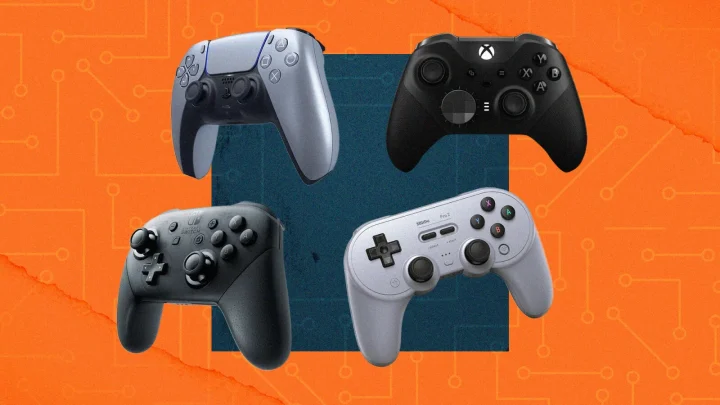
Konami confirms that the PS5 DualSense, PS4 DualShock 4 and Xbox Wireless Controller work with eFootball on mobile over Bluetooth. A controller won’t raise your FPS, but your inputs can feel more precise than on-screen buttons. See our guide on how to connect a PS5, PS4 or Xbox controller to your phone.
Fix lag in eFootball online matches
eFootball is played online most of the time (Dream Team, events, PvP), so a stable connection matters more than raw speed. Try these free fixes before you pay for a booster:
- Use 5 GHz Wi-Fi and stay close to the router. 5 GHz is faster and less crowded than 2.4 GHz. Walls between you and the router cause ping spikes.
- Stop downloads on the same Wi-Fi. Someone streaming video or a phone updating apps in the background can wreck an online match.
- Restart the router. Unplug it for 30 seconds. It fixes more connection problems than it should.
- On mobile data, find a strong signal. If 5G keeps dropping where you are, switching to 4G is often more stable.
- Turn off data saver for eFootball. It can limit the game’s connection in the background.
- Play outside peak hours. Evenings are when home networks are busiest. Ping is often better earlier in the day.
Still laggy? Try GearUP’s free trial. Full details in our guide on how to reduce ping and lag in mobile games.
Not during a match. A faster DNS like Cloudflare’s free 1.1.1.1 can make logins, matchmaking and downloads quicker, but it doesn’t change how fast data travels once the match starts. For in-game lag, fix your Wi-Fi first, then try a network booster.
Laggy after 15 minutes? It’s heat
If eFootball runs fine in your first match and stutters by the third, your phone is overheating. To protect itself, it slows the processor down, and your FPS drops with it. No booster app can fix that, but these can:
- Don’t play while charging. Charging adds a lot of heat on top of the game.
- Take off thick cases while you play.
- Lower the brightness. The screen is one of the biggest heat sources.
- Drop graphics quality one step. Less work for the processor means less heat and a steadier frame rate.
- Use a clip-on phone cooler for long sessions. It’s the most effective fix for heavy games.
More in our guide on how to stop your phone overheating while gaming.
- “RAM cleaner” boosters. Apps that just close background apps don’t raise FPS in eFootball. Android already manages memory, and many of these apps exist to show ads.
- GFX tools and “60 FPS unlockers”. Tools that edit eFootball’s game files can break Konami’s terms of service and put your account at risk. Your Dream Team isn’t worth it.
- Modded or “premium unlocked” booster APKs. Cracked copies of GearUP and other paid boosters are a common way malware gets onto phones. Install only from Google Play, the App Store or the Galaxy Store.
- Unknown free VPNs. A VPN adds an extra stop between you and the server, so ping usually goes up. Gaming boosters are different because they use routes built for games.
Frequently asked questions
What is the best free game booster for eFootball?
The best free game booster for eFootball is the game mode already built into your phone: Game Booster on Samsung, Game Turbo on Xiaomi, Redmi and POCO, Game Space on OnePlus, OPPO and realme, and Game Dashboard on Google Pixel. It can switch your phone into a performance mode, which third-party apps can’t do.
Does a game booster increase FPS in eFootball?
Only your phone’s built-in game mode can really help FPS, because it can change performance settings. Third-party apps that only clear RAM don’t increase FPS. Lowering eFootball’s graphics quality and setting the right frame rate makes the biggest difference.
How do I fix lag in eFootball online matches?
Use 5 GHz Wi-Fi close to the router, stop other downloads on the same network, restart the router, and turn off data saver. If it is still laggy, a network booster such as GearUP, which supports eFootball and has a free trial, can lower ping and packet loss.
Why does eFootball lag after a few matches?
Usually because the phone is overheating and slowing its processor down to protect itself. Stop playing while charging, remove thick cases, lower the brightness and drop the graphics quality one step.
Can I get banned for using a game booster in eFootball?
Your phone’s built-in game mode and network boosters like GearUP don’t change the game, so they are generally safe. Tools that edit eFootball’s game files, such as GFX tools or 60 FPS unlockers, can break Konami’s terms of service and put your account at risk.
Can I play eFootball on mobile with a controller?
Yes. Konami confirms that the PS5 DualSense, PS4 DualShock 4 and Xbox Wireless Controller work with eFootball on Android and iPhone over Bluetooth. Wired connections may not work on every phone.
Final verdict
You don’t need to pay for a game booster to make eFootball run better. Start with your phone’s built-in game mode and the right graphics and frame-rate settings. That fixes most stutter for free. If the game is smooth offline but laggy online, fix your Wi-Fi first, then try GearUP’s free trial and only keep it if you can feel the difference.
Which phone do you play eFootball on, and what FPS do you get? Tell us in the comments and we’ll suggest the best settings.
Join the conversation