

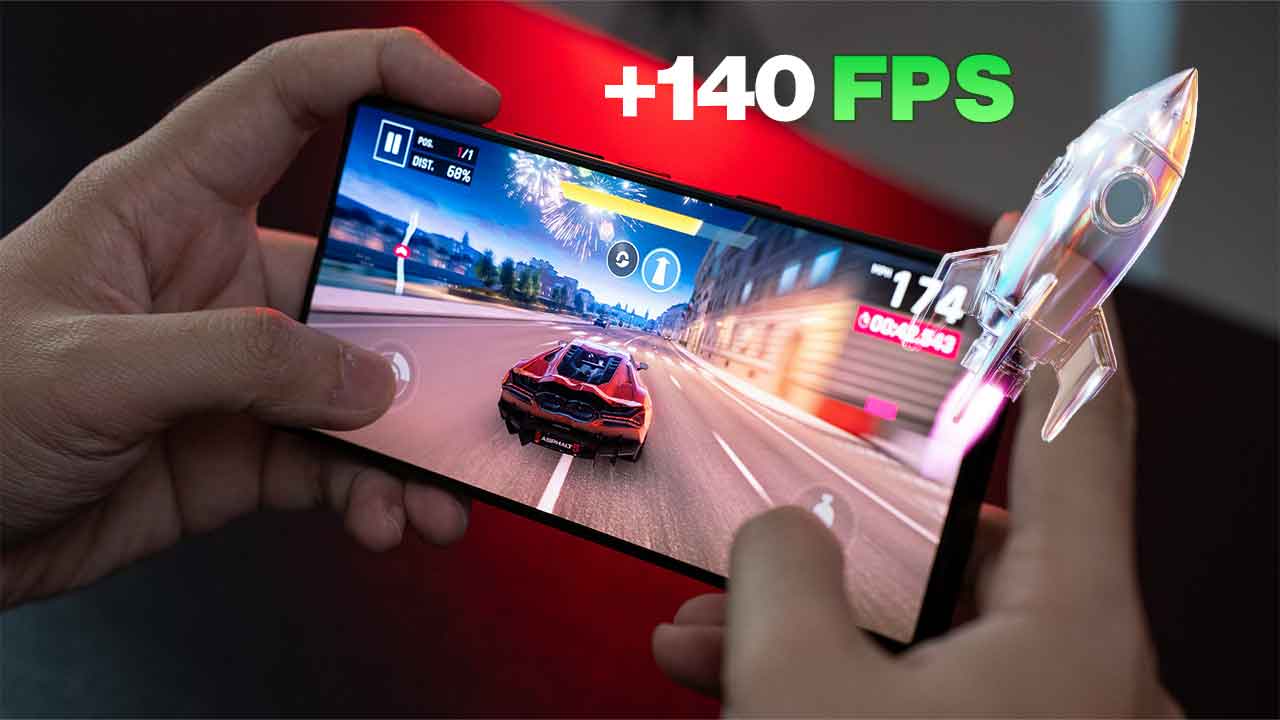
Lag spikes in ranked matches, FPS drops in big team fights, and a phone that heats up after 20 minutes of play are the most common complaints in mobile gaming. A game booster app claims to fix all three. Some really do help. Many are just RAM cleaners with a flashy “4x faster” button.
We went through the most popular game boosters on Google Play, the App Store and the Galaxy Store and kept the 10 that do something useful. That means lowering ping, unlocking frame-rate and graphics options, or giving you tools to see and control what your phone is doing while you play. Every pick below links to its official store page.
- Best for lag and high ping: GearUP Game Booster, with ExitLag as a strong second.
- Best free option: the game mode already built into your phone (Game Turbo, Game Space, Game Dashboard, iPhone Game Mode).
- Best for Samsung Galaxy: Game Booster+ from Good Lock.
- Best for FPS and graphics in PUBG Mobile / BGMI: GFX Tool.
- Best to check if a booster works: Real-time FPS Monitor.
Do game booster apps actually work?
Yes, but only for the problem they are built to solve. A booster cannot make your phone’s chip faster. What it can do is remove things that hold the game back. “Game booster” is a label for three very different kinds of app:
Send game traffic to the game server over a better route. They fix high ping, lag spikes and packet loss, not FPS. Examples: GearUP, ExitLag, LagoFast.
Switch on performance modes, unlock higher frame-rate options or change graphics settings. They fix low or unstable FPS. Examples: Game Booster+, Game Turbo, GFX Tool.
Put your games in one place, block notifications, and show FPS, ping and temperature. They help you find the problem. Examples: Game Mode, FPS Monitor.
What does not work is the classic “RAM cleaner” booster that closes background apps. Android already manages memory. Force-closing apps usually just makes them restart, which wastes battery and can cause more stutter. Most apps of that kind were left off this list.
Best game booster apps compared
| App | Type | Platforms | Price | Best for |
|---|---|---|---|---|
| GearUP | Network | Android, iOS | Free trial, then subscription | Lowering ping in online games |
| ExitLag | Network | Android, iOS | 3-day free trial, then subscription | Lag spikes and packet loss |
| Samsung Game Booster+ | Performance | Samsung Galaxy | Free | Controller mapping, GPU and FPS controls |
| Built-in game mode | Performance | Most phones | Free | Everyone. Start here |
| GFX Tool | Graphics | Android | Free | Unlocking FPS in PUBG Mobile / BGMI |
| LagoFast | Network | Android, iOS | Free trial, then subscription | Another ping booster to try |
| Game Turbo Vol. Booster & HUD | Launcher + HUD | Android | Free, in-app purchases | All-in-one gaming panel |
| Game Mode: Launcher & HUD | Launcher + monitor | Android | Free, optional VIP | Distraction-free play and session stats |
| 1.1.1.1 + WARP | Network / DNS | Android, iOS | Free (WARP+ paid) | Fixing slow DNS and bad routing |
| Real-time FPS Monitor | Monitor | Android | Free, optional Premium | Measuring real in-game FPS |
The 10 best game booster apps in 2026
1GearUP: Lower Lag Game Booster
- Google Play
- 4.1★ · 294K ratings
- App Store
- 4.1★ · 10.8K ratings
- Downloads
- 50M+
- Developer
- GearUP Global
GearUP is the most downloaded mobile network booster on this list. You pick a game, tap Boost, and the app sends that game’s traffic through its own servers on a more direct route to the game server, avoiding the crowded default path your internet provider uses. If your ping jumps from 60 ms to 200 ms during evening hours, this is the kind of app that can fix it.
It supports popular online titles such as Free Fire, PUBG Mobile, Call of Duty: Mobile, Mobile Legends, Brawl Stars and Roblox.
- One-tap boost, very easy to use
- Large server network, works on mobile data and Wi-Fi
- Available on both Android and iPhone
- Full speed needs a paid subscription
- Won’t help much if you’re already close to the game server
2ExitLag: Fix Ping Mobile & Lag
- Google Play
- 4.0★ · 50K ratings
- App Store
- 4.5★ · 1.4K ratings
- Downloads
- 10M+
- Free trial
- 3 days
ExitLag is well known among PC players, and its mobile app uses the same idea: multi-path routing. It sends your game data over several routes at once, so a bad route doesn’t freeze your game. That makes it especially good for random lag spikes, rubber-banding and disconnects, which are usually caused by packet loss rather than high ping.
It adapts when you switch between Wi-Fi and mobile data, which helps if you play on the move.
- Multi-path routing cuts packet loss
- 3-day free trial to test it in your own games
- Strong rating on iPhone
- Subscription required after the trial
- Results vary a lot by country and carrier
3Samsung Game Booster+ (Good Lock)
- Store
- Galaxy Store
- Developer
- Samsung
- Latest version
- 2.0 (One UI 9 support)
- Price
- Free
Every Galaxy phone already has a basic Game Booster panel (swipe it up from the navigation bar while playing). Game Booster+ is Samsung’s official add-on from the Good Lock app, and it unlocks the advanced controls: controller key remapping, GPU and frame-rate adjustments, and per-game profiles. Newer versions add gamepad touch mapping, a CPU (AP) clock limit to keep the phone cooler, and fast-forwarding through game intros. Some of these features only work on the latest Galaxy S models.
How to get it: install Good Lock from the Galaxy Store, open the Plugins tab, and install Game Booster+.
- Official Samsung tool, no ads, no ban risk
- Real system-level controls third-party apps can’t access
- Lets you trade a few FPS for lower heat
- Galaxy phones only
- Good Lock isn’t offered in every country, and some features are limited to newer models
4Your Phone’s Built-in Game Mode
Before you install anything, check what your phone already has. Built-in game modes come from the phone maker, so they can change CPU, GPU and refresh-rate settings that Play Store apps can’t touch. For FPS, that makes them more effective than most third-party “boosters”:
| Phone | Built-in tool | What it does |
|---|---|---|
| Xiaomi, Redmi, POCO | Game Turbo | Balanced / Performance modes, in-game FPS counter, per-game touch and graphics settings |
| OnePlus, OPPO, realme | Game Space / Games app | Performance modes, notification blocking, in-game toolbox |
| Google Pixel (Android 12+) | Game Dashboard | Live FPS counter, Do Not Disturb, Game Mode (performance or battery) in supported games |
| Samsung Galaxy | Game Booster (Gaming Hub) | Performance profile, touch-lock, notification blocking |
| iPhone (iOS 18+) | Game Mode | Turns on by itself in full-screen games. Lowers background activity and cuts controller and AirPods latency |
Menu names vary by model and software version. Search “game” in your phone’s Settings to find it quickly.
5GFX Tool: Launcher & Optimizer
- Google Play
- 4.5★ · 1.69M ratings
- Downloads
- 50M+
- Last updated
- Sep 2024
- Price
- Free
GFX Tool is the classic graphics changer for PUBG Mobile and BGMI. It lets you set resolution, frame-rate level, anti-aliasing and shadows outside the in-game limits. On mid-range phones, the most useful trick is the reverse of what most people try: lower the resolution and turn off shadows to get a steadier, higher FPS.
How to use it: close the game, open GFX Tool, choose your game version, set your options, tap Accept, then Run Game.
- Huge user base with a very high rating
- Can turn a laggy 30 FPS experience into a playable one on weak phones
- Not updated since 2024, so some options may not work on newer game versions
- Unofficial tool. Changing game files can break the game’s rules (see safety)
6LagoFast Game Booster: Low Lag
- Google Play
- 3.4★ · 10.6K ratings
- App Store
- 3.8★ · 478 ratings
- Downloads
- 1M+
- Free trial
- Yes, no card needed
LagoFast works like GearUP and ExitLag: pick a game, connect, play. It says it has 3,000+ servers in 80 countries, with dedicated routes for PUBG Mobile, COD Mobile, MLBB, Free Fire, Brawl Stars and Roblox. Because network boosters perform very differently from region to region, it’s worth trying if GearUP or ExitLag don’t help where you live.
- Free trial with no credit card
- Wide server coverage across many regions
- Lower ratings than GearUP and ExitLag
- Skip its “aim assist” extras. Using them in online games risks a ban
7Game Turbo Vol. Booster & HUD
- Google Play
- 4.4★ · 376K ratings
- Downloads
- 10M+
- Last updated
- Oct 2026
- Developer
- scoreboot
If your phone doesn’t have a good built-in game mode, this app adds one. It gives you a game hub to launch all your games and a floating gaming panel with live FPS, ping, RAM and battery readings. It also has a game volume booster with an equalizer that makes footsteps easier to hear, plus graphics tips for your device. The developer says plainly that it doesn’t speed up games, and that honesty is rare in this category.
- Gives budget phones a Game Turbo-style overlay
- Footstep-boosting audio is great for shooters
- Updated often
- Doesn’t raise FPS by itself
- Loud volume boost can damage speakers and hearing. Start low
8Game Mode: Launcher & HUD
- Google Play
- 4.2★ · 357K ratings
- Downloads
- 50M+
- Last updated
- Sep 2026
- Developer
- G19 Mobile
Game Mode is a game launcher and device monitor. Before you start a game, it checks free memory, ping and battery temperature and warns you about anything that could cause lag. During play, a floating HUD shows refresh rate, memory, battery temperature and ping. It also saves a report after each session. An on-device “AI coach” learns when your phone usually starts to overheat in each game.
It’s useful for working out why a game starts lagging after 15 minutes (it’s usually heat).
- Clear, honest readings with session history
- Home-screen widget and per-game shortcuts
- Shows screen refresh rate, not true game FPS
- Best features are in the VIP tier
91.1.1.1 + WARP (Cloudflare)
- Google Play
- 4.1★ · 1.37M ratings
- App Store
- 4.5★ · 216K ratings
- Downloads
- 100M+
- Price
- Free (WARP+ paid)
Cloudflare’s free app isn’t sold as a game booster, but it fixes two problems that make games feel slow: a slow DNS server from your internet provider (which makes matchmaking, logins and downloads slower) and, in WARP mode, a badly routed connection. It’s free, from a major internet company, and has no ads.
Tip: test both modes. Use plain 1.1.1.1 (DNS only) for most games. Only keep WARP on if your in-game ping drops with it. On a good connection, WARP can add a few milliseconds.
- Completely free, trusted company
- Also improves privacy and blocks some malicious sites
- Not designed for gaming routes like GearUP or ExitLag
- WARP can raise ping on some networks
10Real-time FPS Monitor
- Google Play
- 4.2★ · 19.8K ratings
- Downloads
- 1M+
- Last updated
- Sep 2026
- Developer
- tribalfs
How do you know whether a booster worked? You measure it. This lightweight overlay has two modes. Display FPS shows your screen’s refresh rate (60/90/120 Hz). Content FPS shows the frame rate the game is actually rendering, and it catches micro-stutters and frame drops. Play the same match before and after a change, and you’ll see whether the change helped.
- Measures real game FPS, not just refresh rate
- Quick Settings tile to start and stop
- Content FPS mode needs the free Shizuku app for permission
- Overlay customization is Premium
Which game booster should you choose?
- Your ping is high or jumps around → try a network booster: GearUP or ExitLag. Use their free trials to compare them in your area.
- Your FPS is low or drops in fights → turn on your built-in game mode first, then lower graphics in-game or with GFX Tool.
- The game gets worse after 10 to 20 minutes → it’s overheating. Use Game Mode to watch the temperature, and see the cooling tips below.
- You own a Samsung Galaxy → get Game Booster+.
- You’re on iPhone → iOS Game Mode handles performance automatically, so you only need a network booster if lag is your problem.
9 free tweaks that boost mobile games without any app
These settings often make a bigger difference than any booster, and they cost nothing:
- Set the highest refresh rate. Go to Settings → Display and choose 90/120 Hz (or “High” / “Adaptive”). Then pick the matching frame rate inside the game.
- Turn off battery saver while gaming. It limits your CPU and screen refresh rate, which is a hidden cause of low FPS.
- Keep your phone cool. Heat is the biggest FPS killer. Remove thick cases, avoid gaming while fast charging, and stay out of direct sunlight.
- Lower in-game graphics, raise frame rate. Smooth, high FPS helps you win more than ultra textures do.
- Free up storage. Keep at least 10–15% of storage free. Nearly full storage slows loading and updates.
- Use 5 GHz Wi-Fi and stay close to the router. Pause downloads and video streaming on the same network while you play.
- Choose the nearest game server. Most online games let you pick a region. The closest one gives the lowest ping.
- Restart your phone before a long session. It clears stuck processes far better than any “RAM cleaner”.
- Keep the game and your phone updated. Updates often include performance fixes for specific chips.
- Fake “4x / 5x faster” boosters. Apps that only clean RAM don’t raise FPS. Many exist mainly to show ads.
- Modded or cracked booster APKs. “Premium unlocked” copies of GearUP, ExitLag, LagoFast and others are a common way malware gets onto phones. Install only from Google Play, the App Store or the Galaxy Store.
- Anything that edits game files or gives aim help. Graphics changers and “aim assist” tools can break a game’s terms of service. Competitive games like PUBG Mobile, BGMI, COD Mobile and Free Fire can ban accounts for this. If you use GFX Tool, try it on a secondary account first.
- Unknown VPN-style boosters. Network boosters route your traffic through their servers, so stick to well-known names and read the privacy policy.
Frequently asked questions
Do game booster apps really increase FPS?
Only some do. Built-in tools like Samsung Game Booster+, Xiaomi Game Turbo and Pixel Game Dashboard can switch on performance modes, and GFX Tool can unlock higher frame-rate options in some games. Apps that only clear RAM or close background apps do not increase FPS in any meaningful way.
What is the best free game booster for Android?
The best free game booster is the one already built into your phone: Game Turbo on Xiaomi, Game Space on OnePlus, OPPO and realme, Game Booster on Samsung, and Game Dashboard on Google Pixel. For a third-party app, Game Turbo Vol. Booster & HUD and Game Mode: Launcher & HUD are free and highly rated.
Can a game booster reduce ping and lag?
Network boosters such as GearUP, ExitLag and LagoFast can lower ping and reduce lag spikes by sending game traffic over a better route to the game server. They help most when your internet provider’s route is congested or the server is far away. They can’t fix a weak Wi-Fi signal or a slow data plan.
Can I get banned for using a game booster?
Network boosters and built-in game modes don’t change the game, so they are generally safe. Tools that edit game files, like GFX Tool, and any app offering aim assistance can break a game’s terms of service, and competitive games may ban accounts for this. Use them at your own risk.
Do iPhones need a game booster?
Not for performance. Since iOS 18, iPhones have a built-in Game Mode that turns on automatically in full-screen games, lowers background activity and reduces controller and AirPods latency. iPhone users only need a network booster such as GearUP or ExitLag if they have high ping or lag.
Does Cloudflare WARP reduce ping in games?
Sometimes. The 1.1.1.1 DNS mode speeds up name lookups, and WARP can improve badly routed connections. On a good connection, though, WARP may add a little ping. Test your in-game ping with and without it and keep whichever is lower.
Final verdict
No app will turn a budget phone into a gaming flagship, but the right tool removes the problems that hold your phone back. Start with your phone’s built-in game mode and the free tweaks above. If lag is your problem, try the free trials of GearUP and ExitLag. If FPS is your problem, use Game Booster+ on Samsung or GFX Tool for PUBG Mobile, and check the results with Real-time FPS Monitor.
Which game booster works best on your phone? Tell us your device and favorite game in the comments, and we’ll suggest the best settings.


Join the conversation